Introduction
Files Editor is a complete PDF website you can run as your own business: visitors edit, convert, sign and protect PDF files; you earn from paid plans and Google AdSense. Everything is managed from the admin panel — no coding needed.
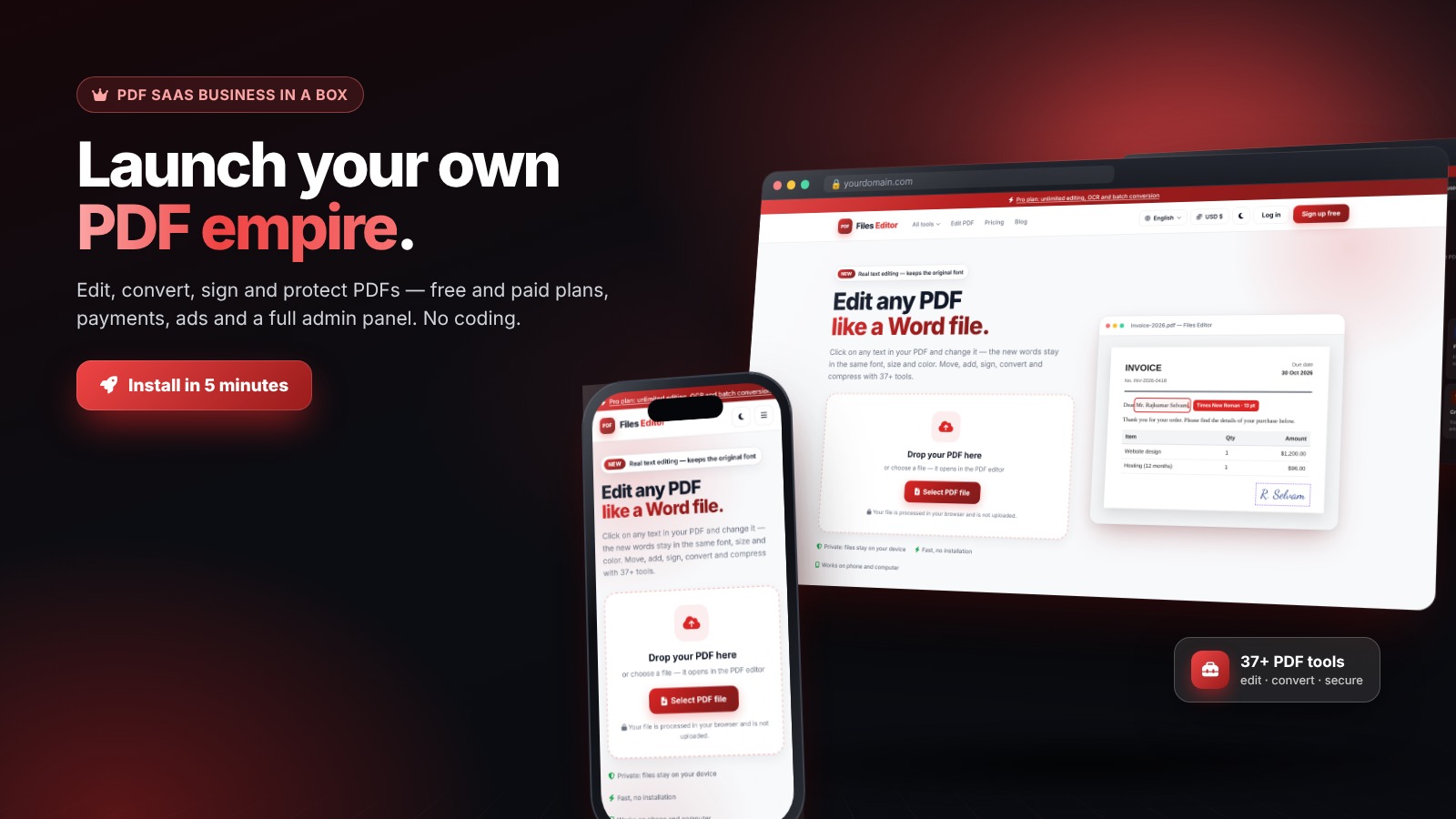
Same-font PDF editor
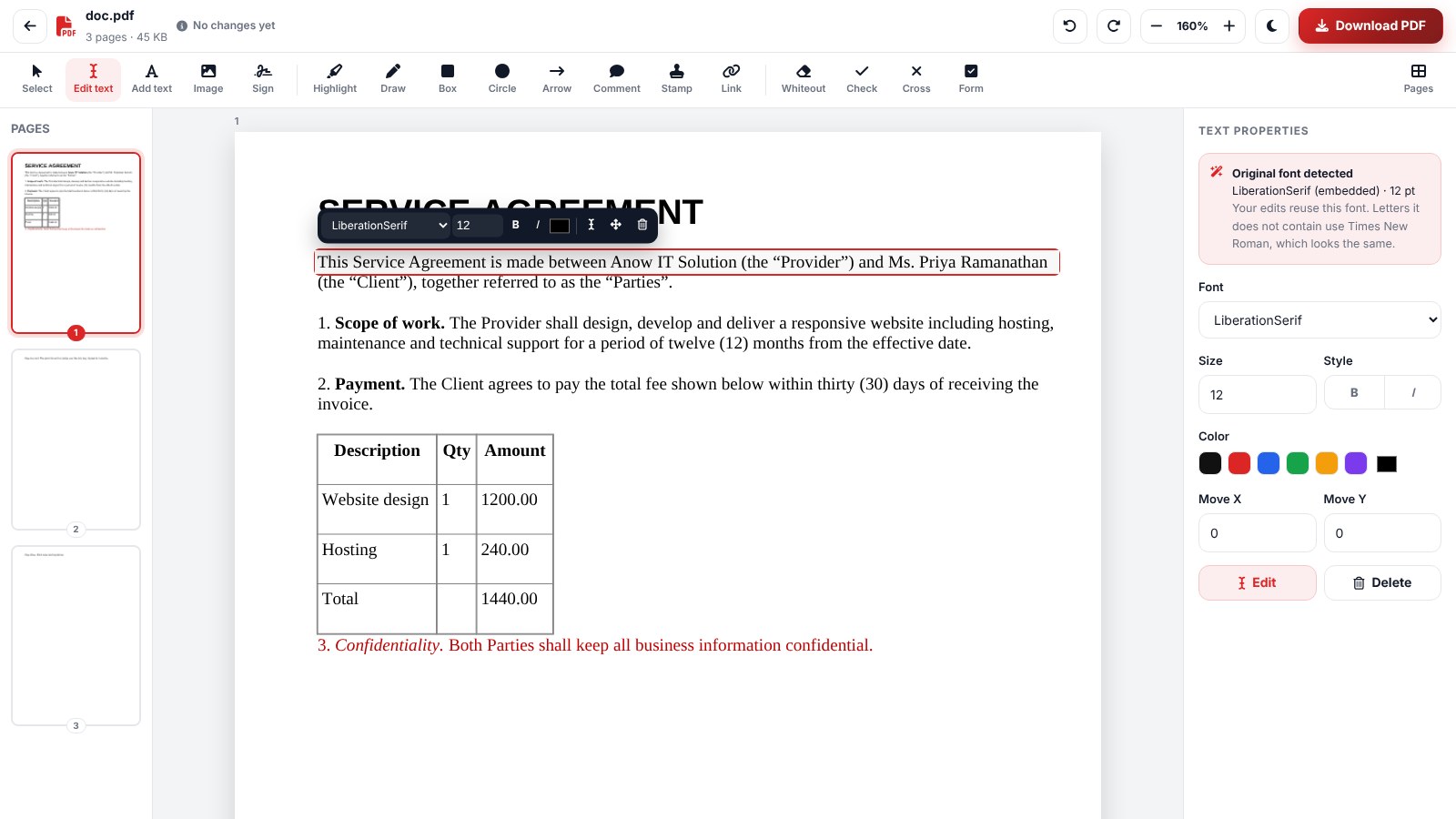
Click any line of an existing PDF and type: the new text uses the original embedded font, size and color. Add text, images, shapes, signatures, links, notes, fill forms.
37 PDF tools
Organize, optimize & secure, convert to and from PDF, OCR in 5 languages. Most tools run in the visitor's browser, so files stay private and your server stays light.
Plans & payments
Free and paid plans with limits, 7 payment gateways with verified webhooks, coupons, tax, invoices, multi-currency.
Admin panel
Statistics, users, payments, tools (rename, free/premium, login), pages, blog, languages with automatic translation, SEO, analytics, AdSense, colors, logo and more.
Tools included
| Edit & Sign | Edit PDF, Annotate PDF, Sign PDF, Fill PDF Forms, Add Watermark, Page Numbers, Redact PDF, Crop PDF |
|---|
| Organize | Merge PDF, Split PDF, Organize PDF, Rotate PDF, Delete Pages, Extract Pages |
|---|
| Optimize & Security | Compress PDF, Protect PDF, Unlock PDF, Repair PDF, OCR PDF, Compare PDF, Flatten PDF, Grayscale PDF, Edit Metadata |
|---|
| Convert to PDF | Word to PDF, Excel to PDF, PowerPoint to PDF, JPG to PDF, HTML to PDF, TXT to PDF |
|---|
| Convert from PDF | PDF to Word, PDF to Excel, PDF to PowerPoint, PDF to JPG, PDF to PNG, PDF to Text, PDF to PDF/A, Extract Images |
|---|
Requirements
- PHP 8.3 or newer (8.3, 8.4, 8.5) with the extensions
pdo_mysql, mbstring, openssl, curl, fileinfo, tokenizer, xml, ctype (and zip, gd recommended). All are enabled on almost every host.
- MySQL 5.7+ / 8.x or MariaDB 10.3+. SQLite also works (for testing).
- Apache or LiteSpeed with
mod_rewrite (cPanel, hPanel, Plesk, DirectAdmin…) or Nginx.
- No Composer, Node.js or SSH needed: the
vendor folder and the built assets are included.
- Optional: LibreOffice on the server (best quality Word/Excel/PowerPoint ⇄ PDF) or a ConvertAPI key. Without them, Office conversions run in the browser.
Install on shared hosting (cPanel, hPanel, Plesk…)
- Create a database. In your hosting panel open MySQL Databases, create a database and a user, and give the user All privileges on the database. Write down the database name, user name and password.
- Select PHP 8.3 or newer for your domain (cPanel: MultiPHP Manager or Select PHP Version).
- Upload the files. Open File Manager, go to your domain folder (usually
public_html), upload the ZIP file and Extract it there. If the files end up inside a folder (for example files-editor), open that folder, Select all and Move everything one level up into public_html. You should see folders such as app, public, vendor and a file named .htaccess directly inside public_html.
- Run the installer. Open
https://yourdomain.com/install. The installer checks the server, asks for the database details, creates the tables and your admin account. Tick Add demo content only for a demo site.
- Log in at
https://yourdomain.com/admin with the email and password you chose.
Hidden files: the .htaccess file sends every request to the public folder, so your code, .env and vendor can never be opened in a browser. In File Manager turn on Settings › Show hidden files to see it.
Best setup: if your panel lets you choose the document root of the domain, point it to the public folder. Both ways work.
Installing in a sub-folder
You can also install into a sub-folder such as public_html/pdf. Open https://yourdomain.com/pdf/install and enter https://yourdomain.com/pdf as the site address.
Install on a VPS (Ubuntu, Nginx or Apache)
sudo apt install nginx php8.3-fpm php8.3-mysql php8.3-mbstring php8.3-xml php8.3-curl php8.3-zip php8.3-gd mariadb-server
# optional, for the best Office conversions:
sudo apt install libreoffice-core libreoffice-writer libreoffice-calc libreoffice-impress ghostscript

sudo mkdir -p /var/www/fileseditor && cd /var/www/fileseditor
sudo unzip /path/to/files-editor.zip
sudo chown -R www-data:www-data storage bootstrap/cache public/uploads .
Nginx
server {
    listen 80;
    server_name yourdomain.com;
    root /var/www/fileseditor/public;
    index index.php;
    client_max_body_size 200M;

    location / { try_files $uri $uri/ /index.php?$query_string; }
    location ~ \.php$ {
        include snippets/fastcgi-php.conf;
        fastcgi_pass unix:/run/php/php8.3-fpm.sock;
    }
    location ~ /\.(?!well-known) { deny all; }
}
Apache
<VirtualHost *:80>
    ServerName yourdomain.com
    DocumentRoot /var/www/fileseditor/public
    <Directory /var/www/fileseditor/public>
        AllowOverride All
        Require all granted
    </Directory>
</VirtualHost>
Enable HTTPS (for example with certbot), then open https://yourdomain.com/install.
For large files raise upload_max_filesize and post_max_size in php.ini (for example 200M).
First steps after installing
- General: site name, contact email and — recommended — a private admin address instead of
/admin.
- Appearance: logo, favicon and colors.
- Email (SMTP): so receipts and password-reset emails are delivered. Send a test email.
- Login & security: turn on Require 2FA for admins and set up two-factor authentication on your account.
- Payment gateways: add your keys and the webhook URL shown on the page in each gateway's dashboard.
- Plans and Tools: prices, limits, and which tools are free, premium or need sign-in.
- Languages: add the languages of your visitors and translate them automatically.
- SEO, Analytics and AdSense: Search Console verification, Google Analytics and ads.
General & admin address
Admin › Settings › General: site name, tagline, description, contact email, footer text, copyright line, the Developed by credit, the announcement bar, blog/contact on or off and social links.
Renaming the admin folder
Change Admin panel address (for example my-office-2026) and save: you are taken to the new address at once. It is stored as ADMIN_PATH in the .env file. If you forget it, open .env in File Manager and look for ADMIN_PATH=. The address is never shown in robots.txt or the sitemap.
Admin title is the small text under your name in the admin panel (for example "Super admin").
Appearance
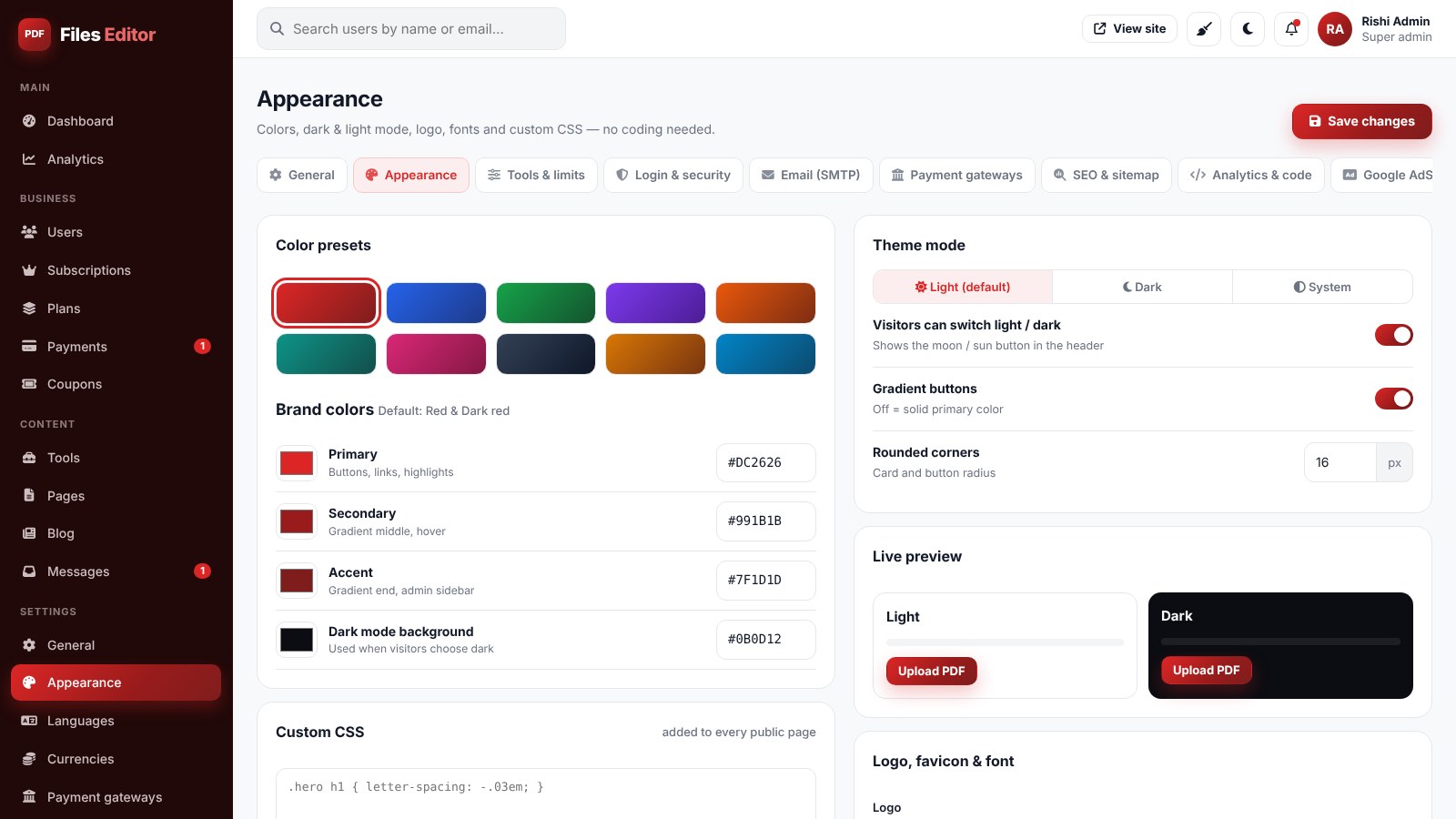
- Color presets or your own primary, secondary and accent colors (default red & dark red) and the dark-mode background.
- Theme mode: light (default), dark or follow the device; allow visitors to switch.
- Gradient or solid buttons, corner roundness, font.
- Logo (and a separate logo for dark mode), favicon.
- Custom CSS added to every public page.
Plans, coupons & subscriptions
Plans: name, monthly and yearly price (in the base currency), features list, tasks per day (0 = unlimited), max file size, files per task, cloud storage, premium tools, server conversion, ads on/off, free plan, "Most popular" highlight.
Coupons: percentage or fixed discount, maximum uses, start and end date, limited to some plans. A coupon can never make an order free or negative.
Subscriptions start automatically after a verified payment and extend when the same plan is paid again. A reminder email is sent three days before the end. You can also give a plan to a user for free in Users › Edit › Subscription.
Payment gateways
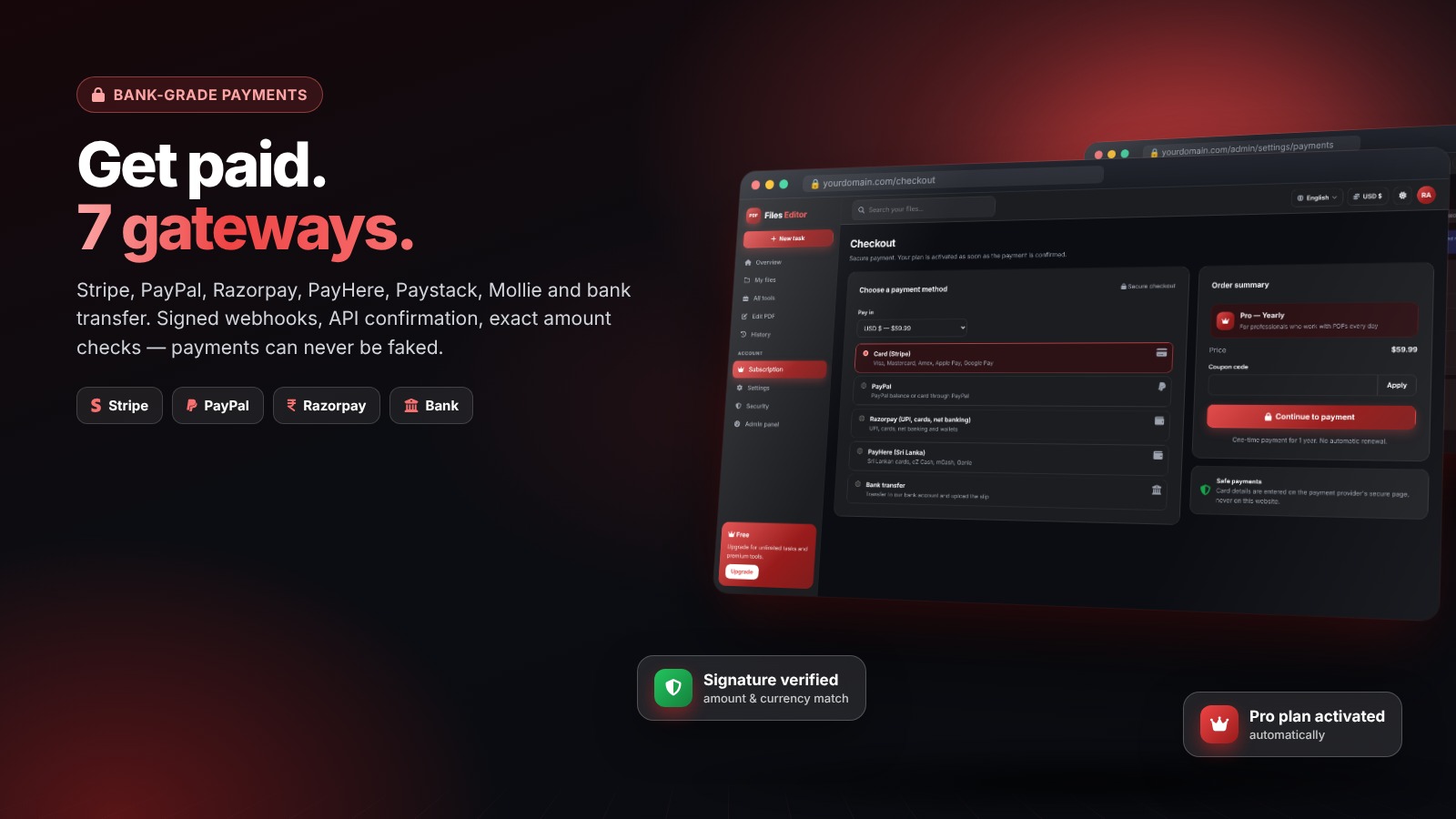
Admin › Settings › Payment gateways. Turn a gateway on, paste its keys, and copy the Webhook URL shown under it into the gateway's dashboard. A gateway shows Ready when it is on and all keys are filled in.
| Gateway | Where to find the keys | Webhook / event |
|---|
Stripe
cards, Apple Pay, Google Pay | Dashboard › Developers › API keys: publishable and secret key | Developers › Webhooks › Add endpoint: /payments/webhook/stripe, events checkout.session.completed and checkout.session.async_payment_succeeded. Copy the signing secret (whsec_…). |
| PayPal | developer.paypal.com › Apps & Credentials: client ID and secret (sandbox or live) | Add webhook /payments/webhook/paypal with event PAYMENT.CAPTURE.COMPLETED, copy the Webhook ID. |
Razorpay
India | Dashboard › Account & Settings › API keys | Webhooks › /payments/webhook/razorpay, events payment.captured, order.paid, set a secret and paste it. |
PayHere
Sri Lanka | Settings › Domains & Credentials: merchant ID and merchant secret (add your domain there) | The notify URL is sent automatically with each payment. |
Paystack
Africa | Settings › API Keys & Webhooks | Webhook URL /payments/webhook/paystack, event charge.success. |
Mollie
Europe | Developers › API keys | Sent automatically with each payment. |
| Bank transfer | Write your bank details | Customer uploads a slip; you approve it (see below). |
Test first: use Stripe test keys, PayPal sandbox or PayHere sandbox and a test card, check that the plan is activated, then switch to live keys.
Tax / VAT and the company name and address for invoices are at the top of the same page. Customers download invoices from Subscription in their dashboard.
Bank transfer approval
When a customer uploads a payment slip, you get an email and a notification in the admin top bar. Open Payments › Bank slips to review, check the slip and that the money has arrived, then click Approve and activate plan or Reject with a reason. Slips are stored privately (not in a public folder) and only admins can open them.
Email (SMTP)
Choose SMTP server and fill in host, port, encryption, user name and password. Common values:
| Provider | Host | Port / encryption |
|---|
| cPanel email account | mail.yourdomain.com | 465 / SSL |
| Gmail / Google Workspace | smtp.gmail.com | 465 / SSL (use an App password) |
| Brevo, Mailgun, SendGrid, Amazon SES | from your provider | 587 / TLS |
Save, then use Send a test email at the bottom of the page.
Login, two-factor authentication & social login
Two-factor authentication (2FA)
Users turn on 2FA in Dashboard › Security by scanning a QR code with Google Authenticator, Microsoft Authenticator, Authy or any TOTP app. They receive 8 one-time recovery codes. Each code can be used only once. In Login & security you can require 2FA for admins (recommended) and/or for all users. If a user loses their phone, use Users › Edit › Reset 2FA.
Google login
- Open console.cloud.google.com › APIs & Services › Credentials › Create credentials › OAuth client ID (type Web application).
- Add the Authorized redirect URI shown in the admin panel (
https://yourdomain.com/auth/google/callback).
- Paste the client ID and secret and turn on Continue with Google.
Facebook login
- Create an app at developers.facebook.com, add Facebook Login.
- Add the Valid OAuth redirect URI shown in the admin panel (
https://yourdomain.com/auth/facebook/callback).
- Paste the App ID and secret and turn on Continue with Facebook.
Captcha
Google reCAPTCHA v2 or Cloudflare Turnstile protects login, registration and the contact form.
Languages & automatic translation
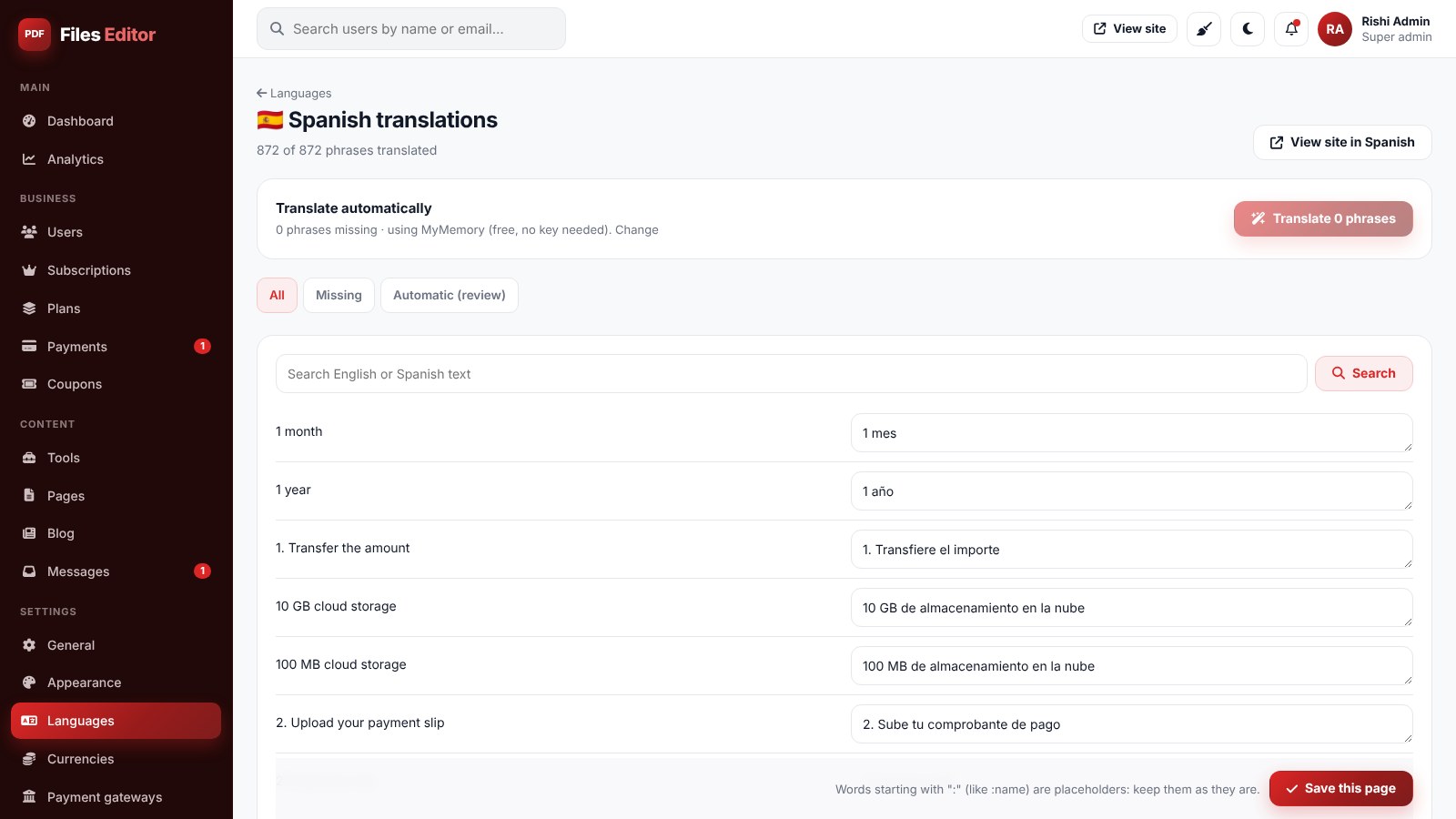
English, Spanish, French, German, Arabic (right-to-left), Tamil and Sinhala are included and fully translated. When you add one of these languages again later, its translation is imported instantly. To add another language:
- Admin › Languages › Add language, pick it from the quick list (or enter its code, name and direction) and save.
- On the next page click Translate automatically. Every phrase of the site is translated in small batches; you see the progress.
- Review: the Automatic filter shows machine translations; correct any phrase and save.
The translations are saved in your database — no Google Translate widget is loaded. Each language has its own address (/ta/merge-pdf, /si/pricing…) with hreflang tags, so search engines index every language.
Translation services (on the Languages page): MyMemory (free, no key; add your email for 50,000 characters per day), DeepL (API key), or LibreTranslate (your own server or a hosted one).
Placeholders such as :name must stay as they are. Click Find new phrases after you change texts in the code.
Currencies
Plan prices are set in the base currency. Each other currency has an exchange rate; click Update rates to fetch current rates, or type them. Visitors choose a currency in the header and pay in it when the gateway supports it (for example PayHere: LKR and USD; Razorpay: INR).
SEO, sitemap & Google Search Console
- Home page title, description and keywords, and a social sharing image.
- Every tool, page and blog post has its own meta title and description.
- Sitemap at
/sitemap.xml with all languages; robots.txt is editable.
Verify your site in Google Search Console
- In Search Console add a URL prefix property and choose HTML tag.
- Copy only the
content value (for example abc123…) into Analytics & code › Google Search Console and save.
- Click Verify in Search Console, then submit
https://yourdomain.com/sitemap.xml under Sitemaps.
Analytics & custom code
Google Analytics 4 measurement ID (G-…), Google Tag Manager (GTM-…), Meta Pixel, Bing / Yandex / Pinterest verification, and three places for your own code: inside <head>, after <body> and before </body> (chat widgets, other tags). None of this is loaded in the admin panel.
The admin Analytics page also shows cookie-free visitor statistics: visitors, page views, top pages, referrers, devices, browsers, tool usage and sign-ups.
Google AdSense
- Enter your publisher ID (
ca-pub-…) and turn on Show ads.
- Turn on Auto ads, or paste ad unit codes into the six slots (below the header, above the upload box, below the result, blog sidebar, inside posts, above the footer).
/ads.txt is created automatically from your publisher ID, or paste your own.
Plans with Show ads turned off get an ad-free site — a good reason to upgrade.
Pages, blog & messages
Pages (About, Privacy, Terms, Refund, Cookie policy are included) appear in the footer column you choose. Blog posts have a cover image, summary, schedule date and SEO fields. Both use a simple HTML editor; scripts and unsafe code are removed automatically. Messages from the contact form are listed with unread counts and copied to your contact email.
Users
Search and filter users, edit details and roles, ban, delete, give a subscription, reset 2FA, and View as this user to see exactly what a customer sees (a banner lets you return to the admin panel). The last admin cannot be removed or banned.
Conversion engines
Most tools run fully in the visitor's browser. For Word, Excel and PowerPoint ⇄ PDF you can choose in Tools & limits › Conversion engine:
| Auto (recommended) | LibreOffice if installed on your server, otherwise ConvertAPI if a key is set, otherwise the browser converter. |
|---|
| LibreOffice | Best free quality. Install on a VPS: sudo apt install libreoffice-core libreoffice-writer libreoffice-calc libreoffice-impress. Shared hosts usually do not have it. |
|---|
| ConvertAPI | Cloud conversion with an API key from convertapi.com — works on any hosting. |
|---|
| Browser only | No server work at all. Good for text documents and simple layouts. |
|---|
System status shows which engines were found.
How the PDF editor keeps the original font
The editor reads the text objects of the PDF itself. When you change a line, the old glyphs are removed and the new text is written with the same embedded font at the same position, size and color. Letters that the embedded font does not contain (PDFs often include only the letters used) are written with the closest matching font from the 20 bundled families (Times, Arial, Courier look-alikes, Noto for Tamil, Sinhala, Hindi and Arabic, signature fonts…), so the line still looks right. Bold or colored words in the same line keep their style.
Updating to a new version
- Make a backup of your files and database.
- Upload the new files over the old ones. Keep your
.env file and the storage and public/uploads folders.
- Open any page: the database is updated automatically, new tools and phrases are added, and caches are cleared. Your settings, texts and translations are kept.
Cron job (optional)
Expired plans, renewal reminders and temporary-file cleanup run automatically every 15 minutes while your site has visitors — no cron needed. For exact timing add this cron job (every minute) in your hosting panel; the exact command for your server is shown in System status:
* * * * * cd /home/USER/public_html && php artisan schedule:run >> /dev/null 2>&1
Demo mode
For a public demo set DEMO_MODE=true in .env and create an admin account for visitors. They can open every page of the admin panel, but nothing can be saved or changed (including the demo admin's own password and 2FA).
Customizing the code
- Views:
resources/views (Blade). Styles: resources/css. Scripts: resources/js (each tool is a module in resources/js/tools/modules).
- After changing CSS or JS, rebuild with Node.js 20+:
npm install then npm run build (the built files in public/build are included, so this is only needed for your own changes).
- Texts: write
t('Your text') in Blade or __('Your text') in JavaScript; new texts appear in Languages after Find new phrases.
- Tests:
composer install (with dev packages) and php artisan test.
Security notes
- Payments are activated only after the gateway confirms them: webhooks must carry a valid signature (Stripe, Razorpay, Paystack, PayHere) or are verified with the gateway's API (PayPal, Mollie); return pages ask the gateway using the reference stored in your database — never data from the URL. The amount and currency must match the order exactly, and a gateway transaction can pay for only one order. Webhooks with a missing secret are refused.
- Server conversions refuse documents that link to external files, web pages or local files, Word field codes and external spreadsheet formulas; LibreOffice runs with links, macros and remote content disabled. The server never fetches a URL from a user.
- Accounts: hashed passwords, login throttling, optional 2FA with replay protection, captcha, encrypted API keys in the database, CSRF protection, renamable admin folder.
- Files: most tools run in the browser; saved files are private to their owner; temporary server files are deleted within an hour; uploaded images are checked and scripts are blocked in
public/uploads.
Troubleshooting & FAQ
I see "500 Server Error"
Check that PHP 8.3+ is selected and that storage, bootstrap/cache and public/uploads are writable (permission 775). Details are logged in storage/logs.
The installer page does not open / I get a list of files
The hidden .htaccess file was not uploaded or mod_rewrite is off. Upload it again (it is in the ZIP) or point the domain to the public folder.
Emails are not sent
Choose SMTP server (not Log only), check the details and send a test email. Some hosts block port 465 — try 587 with TLS.
A payment was made but the plan is not active
Check that the webhook URL and secret are set in the gateway dashboard and in the admin panel, and that your site uses HTTPS. The payment page also confirms the payment when the customer comes back. Payments › details shows notes for every payment.
Large files fail to upload
Raise upload_max_filesize and post_max_size in PHP settings. Most tools work in the browser and are not affected.
I forgot the admin address
Open .env and look for ADMIN_PATH=.
I lost my phone with the authenticator app
Use one of your recovery codes on the login page. Another admin can also reset your 2FA in Users.
Credits & licenses
Laravel and PHP libraries (MIT), pdf.js (Apache-2.0), pdf-lib / @cantoo/pdf-lib and fontkit (MIT), qpdf-wasm (Apache-2.0), Tesseract.js (Apache-2.0), SheetJS Community Edition (Apache-2.0), docx (MIT), PptxGenJS (MIT), JSZip (MIT/GPLv3 dual — used under MIT), Mammoth (BSD-2), jsdiff (BSD-3), SortableJS (MIT), Chart.js (MIT), qrcode (MIT), Google2FA (MIT), Bacon QR Code (BSD-2), Font Awesome Free (icons CC BY 4.0, fonts OFL, code MIT), Inter, Noto, Tinos, Arimo, Cousine, Carlito, Caladea, Roboto, Open Sans, Montserrat, Lato, Dancing Script, Great Vibes, Allura, Sacramento and Caveat fonts (OFL / Apache-2.0), sRGB ICC profile (CC0).
Stripe, PayPal, Razorpay, PayHere, Paystack, Mollie, Google, Facebook, DeepL and ConvertAPI require your own accounts and are trademarks of their owners.
Support
Developed by Anow Hosting
Website: anowhosting.com
Support email: anowhosting@gmail.com
WhatsApp support: +94 77 968 8469
Please include your purchase code, your site address and the information from Admin › System status.